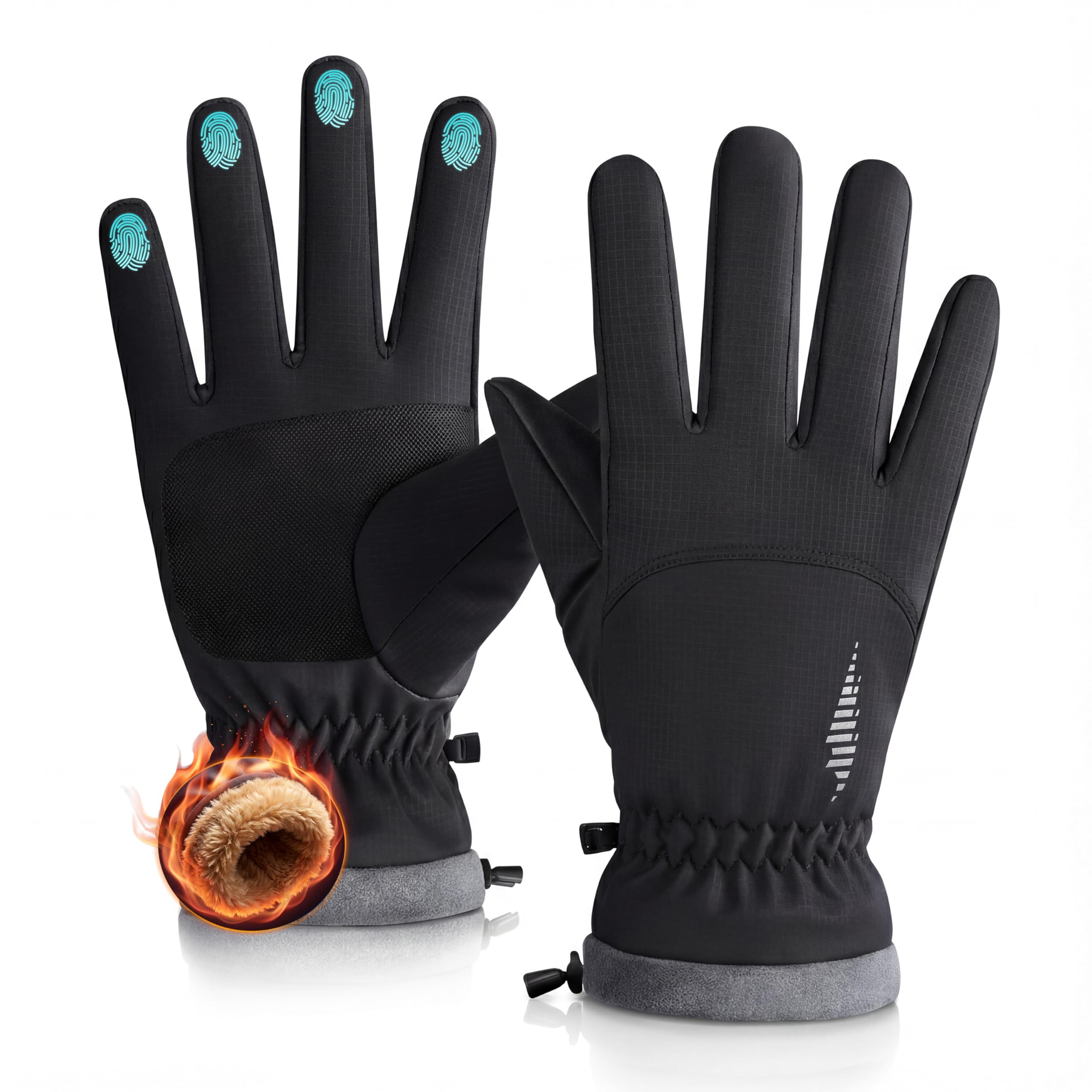
How to Minimize Touchscreen Latency in Heated Gloves for Photographers
Introduction
Photographers who work in cold environments often rely on heated gloves to keep their hands warm while maintaining dexterity. However, the insulating layers that provide warmth can also increase touchscreen latency, making it difficult to adjust camera settings or interact with mobile apps. This guide explains how to reduce that latency without sacrificing warmth. Readers will learn which glove features matter, how to configure heat settings, and which accessories enhance responsiveness. By following the steps, one can achieve reliable touchscreen performance even in sub‑zero conditions.
The information is presented in a practical, step‑by‑step format. Each step includes actionable instructions, explanations of why certain products are useful, and real‑world examples. The guide remains valuable even if readers choose not to purchase any recommended items, but the suggested tools can streamline the process and improve results.
What You’ll Need
- One pair of heated gloves with touchscreen‑compatible fingertips.
- Smartphone or tablet for camera control apps.
- External stylus (optional for extreme cold).
- Charging cable and spare battery pack.
- Cleaning cloth for screen and glove fingertips.
Below are recommended products that fulfill these requirements.
Step 1: Select Heated Gloves with Conductive Fingertips
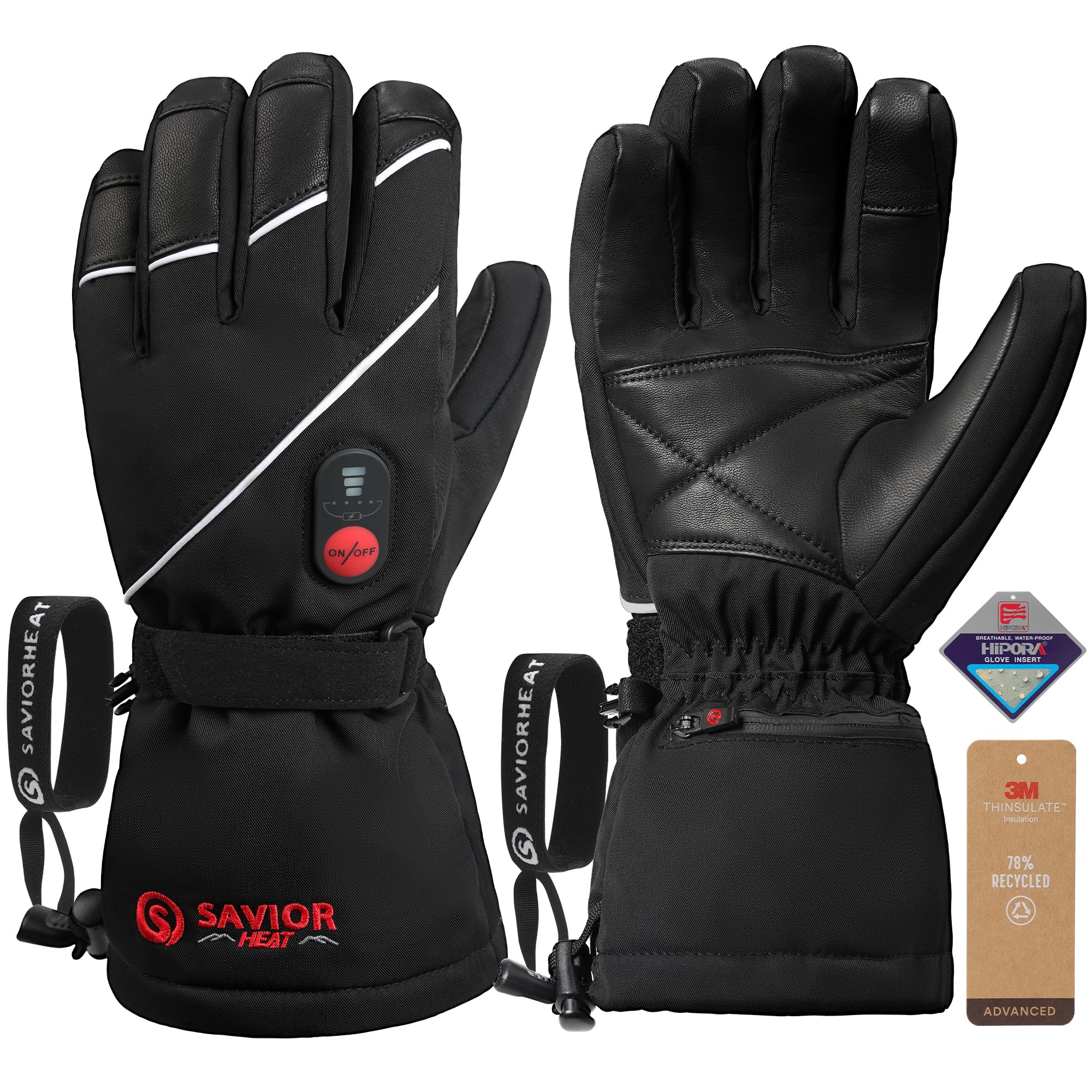
Choosing gloves that incorporate conductive material in the thumb and index finger is the foundation for low latency. Conductive fibers allow electrical signals to pass through the glove material, enabling the device to register touches promptly. The Savior Heat Heated Gloves feature touchscreen‑compatible fingertips, dual batteries for up to 12 hours of heat, and a waterproof, windproof membrane. At $149.99 and a rating of 4.3/5 from 3,189 reviews, they provide reliable warmth and rapid heat activation within 10 seconds.
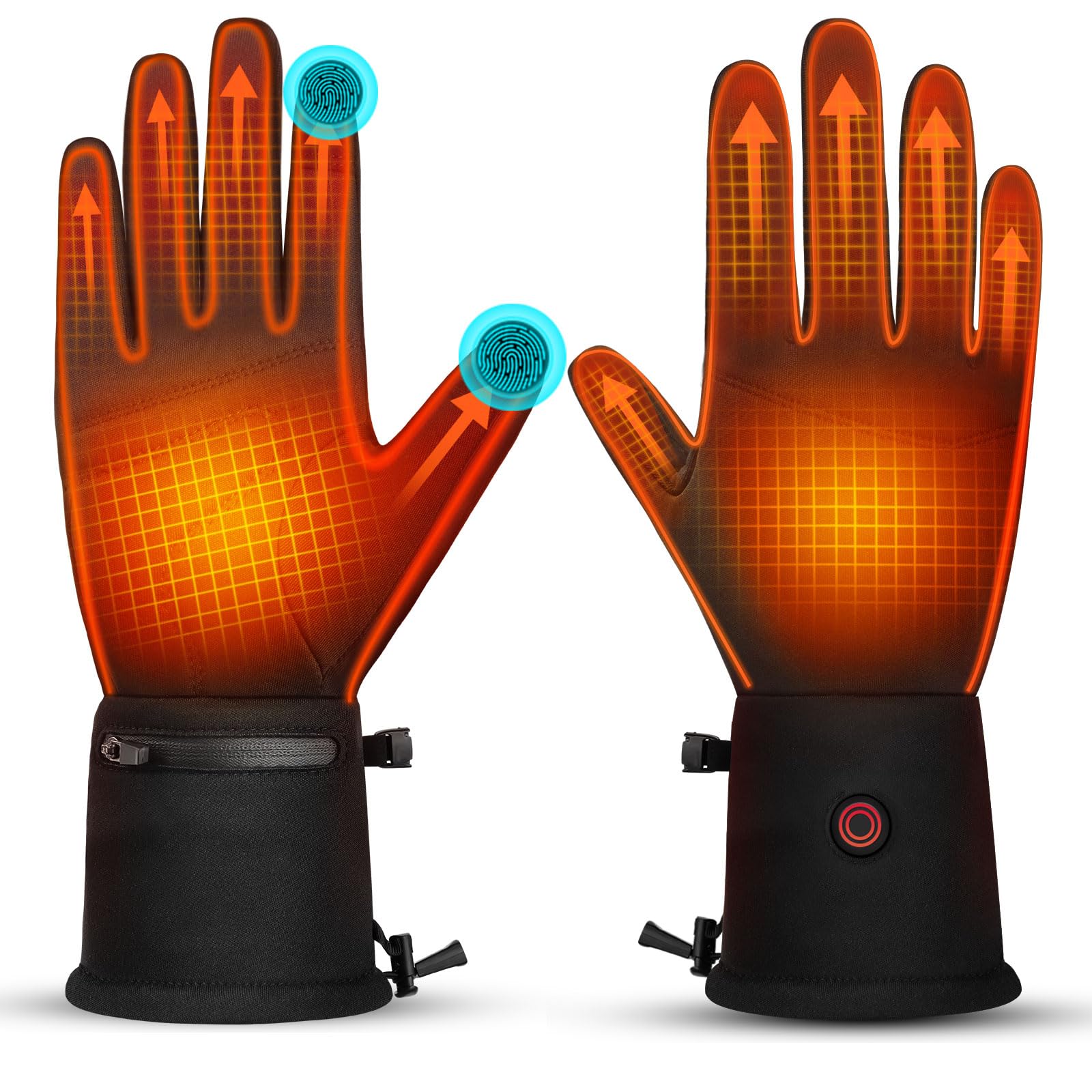
For users who prefer a lighter, motorcycle‑oriented design, the Ebullient Waterproof Heated Motorcycle Gloves also include conductive fingertips and a 3‑second fast‑heating system. Priced at $71.99 with a 3.9/5 rating from 239 reviews, they deliver up to 6 hours of warmth and are waterproof, making them suitable for wet snow conditions.
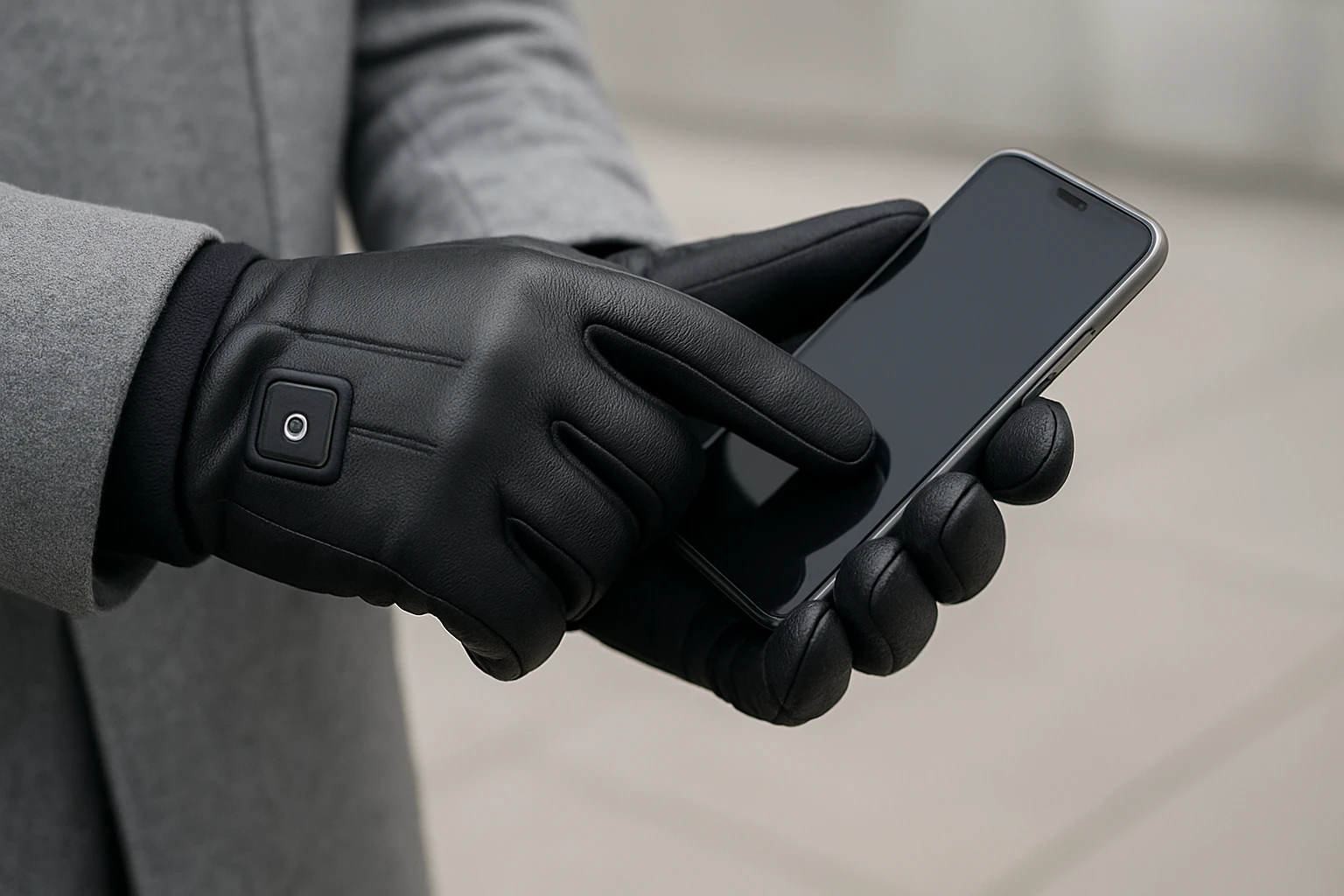
When selecting gloves, verify that the conductive area covers the thumb and index finger, as these are the primary points of interaction with camera apps. Avoid gloves that rely solely on external conductive pads, as they often introduce additional latency.
Step 2: Optimize Heat Settings for Minimal Interference
Excessive heat can cause the conductive fibers to expand, slightly increasing the distance between the finger and the screen. This can result in delayed signal transmission. Adjust the heat level to the lowest setting that still provides comfort. The Savior Heat Gloves offer three heat modes ranging from 104–113°F to 122–149°F. Selecting the low‑heat mode (104–113°F) reduces power consumption and minimizes material expansion, thereby lowering latency.
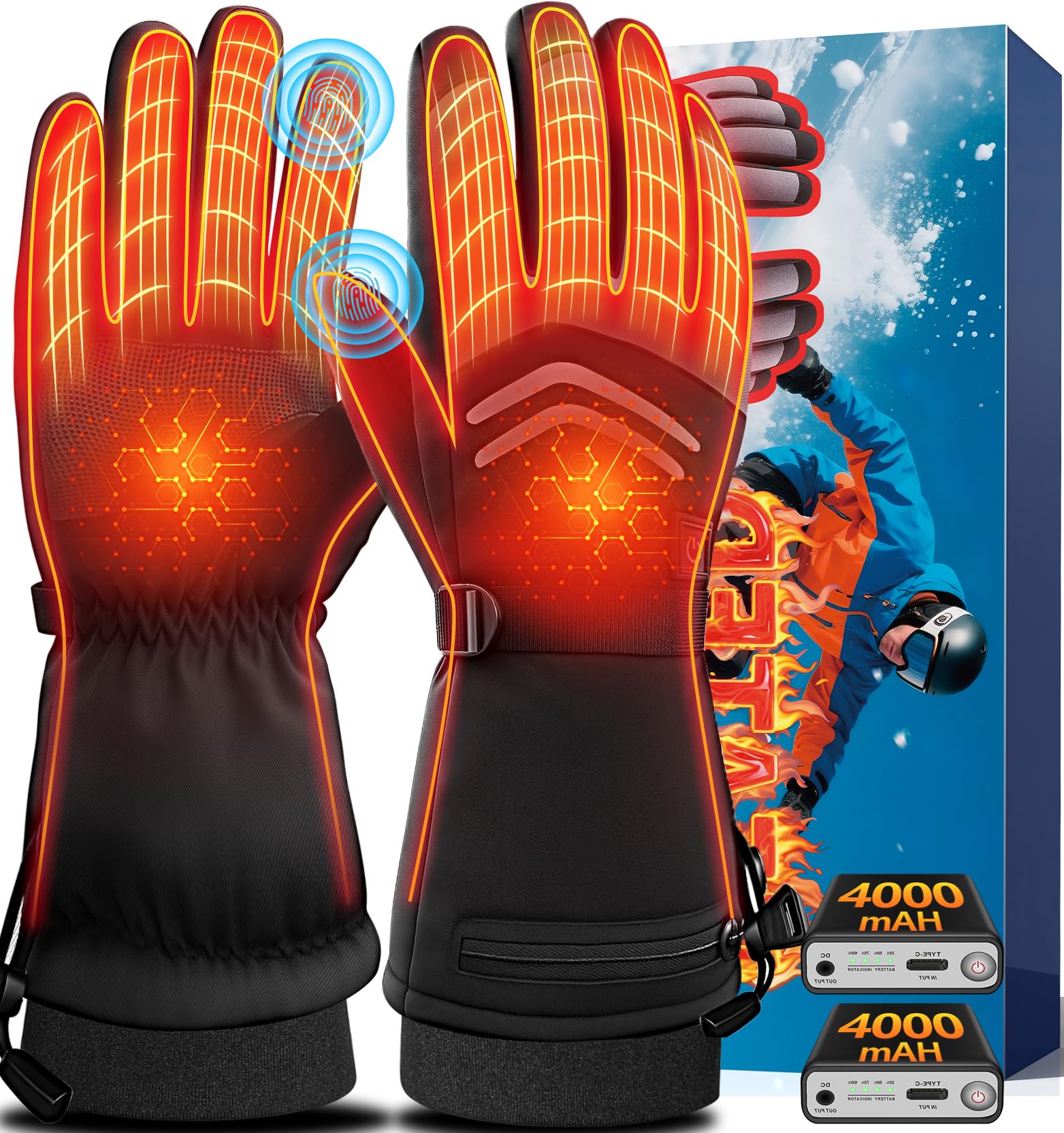
If longer runtime is required, the JYew Heated Gloves provide up to 10 hours of warmth on the lowest setting thanks to an 8000 mAh battery. Priced at $29.99 with a 3.8/5 rating from 27 reviews, they allow photographers to maintain a low heat level for extended shoots without frequent recharging.
Set the gloves to the low mode before beginning a shoot, then monitor hand temperature. If hands become cold, increase the setting briefly, then return to low mode. This cyclical approach keeps the conductive fibers stable while preserving warmth.
Step 3: Clean Conductive Surfaces and Device Screen
Residue on either the glove fingertips or the device screen can increase friction and delay signal detection. Use a lint‑free cloth slightly dampened with isopropyl alcohol to clean the conductive areas of the gloves. Similarly, wipe the touchscreen with a microfiber cloth to remove snowflakes, oil, or dust. Cleaning should be performed before each shooting session for optimal performance.
The Rivmount Thermal Ski Gloves, while not heated, feature highly sensitive touchscreen fingertips made from conductive fabric. They are an inexpensive option ($14.99, rating 4.4/5 from 4,457 reviews) for photographers who need a backup pair when heat is unnecessary. Keeping these gloves clean ensures they remain a viable low‑latency alternative.
After cleaning, allow both gloves and screen to dry completely. Moisture trapped between layers can act as an insulator, increasing latency.
Step 4: Use an External Stylus for Precise Adjustments
Even with optimal gloves, some camera apps require fine‑grained adjustments that are difficult to achieve with finger taps. An external stylus with a conductive tip bypasses the glove material entirely, delivering instant response. Choose a stylus with a diameter of 1 mm or less to maintain precision. While the guide does not recommend a specific stylus, the principle remains that a stylus reduces latency by eliminating the glove‑screen interface.
When using a stylus, keep the gloves on to maintain hand warmth. The stylus can be stored in the glove pocket provided by the Savior Heat Gloves, ensuring quick access without exposing the hands to cold.
Combine stylus use with low heat settings for the best balance between warmth and responsiveness.
Step 5: Calibrate Touchscreen Sensitivity Settings
Modern smartphones and tablets allow users to adjust touchscreen sensitivity. Increase the sensitivity setting in the device’s accessibility menu to compensate for the thin insulating layer of heated gloves. For example, on iOS devices, navigate to Settings → Accessibility → Touch → Touch Accommodations and enable “Increase Touch Sensitivity.” On Android, go to Settings → Display → Touch Sensitivity and activate the option.
After adjusting the sensitivity, test the response by opening the camera app and tapping the shutter button. If latency persists, reduce the heat level further or consider a glove with a thinner conductive layer, such as the Rivmount Thermal Ski Gloves.
Document the optimal settings for each device, as different models may react uniquely to glove material.
Step 6: Manage Battery Life to Prevent Power‑Related Lag
Battery voltage drops as the charge depletes, potentially reducing the power supplied to the heating elements and conductive fibers. A low battery can cause the gloves to enter a power‑saving mode, which may increase latency. Monitor battery levels using the built‑in indicator on the gloves. The Savior Heat Gloves include a dual‑port fast charger that fully recharges both batteries in approximately two hours.
If shooting for extended periods, carry a spare power bank or an additional battery pack. The JYew Heated Gloves’ high‑capacity battery makes them suitable for long sessions, as they maintain consistent voltage for up to 10 hours.
Always start a shoot with fully charged gloves to ensure stable performance throughout the session.
Tips & Pro Tips
- Pre‑warm gloves for 30 seconds before handling the device to eliminate cold‑induced stiffness.
- Keep the device screen slightly angled away from direct wind to reduce condensation on the glass.
- When using a stylus, select one with a rubber tip to avoid scratching the screen.
- Store gloves in a breathable pouch when not in use to prevent moisture buildup.
- For extreme cold, consider layering a thin, non‑conductive liner underneath the heated gloves to add warmth without affecting latency.
Troubleshooting
| Problem | Possible Cause | Solution |
|---|---|---|
| Touchscreen does not respond | Heat level too high causing fiber expansion | Reduce heat to low setting and retry. |
| Intermittent lag | Battery low, entering power‑saving mode | Recharge gloves or swap to spare battery. |
| Screen is blurry after cleaning | Residue left on glass | Wipe again with a dry microfiber cloth. |
| Gloves feel bulky | Multiple layers or oversized fit | Choose a size that fits snugly; consider Rivmount gloves for a lighter alternative. |
Conclusion
By selecting gloves with conductive fingertips, adjusting heat to the lowest comfortable setting, keeping conductive surfaces clean, using an external stylus when precision is required, calibrating device sensitivity, and managing battery life, photographers can significantly reduce touchscreen latency while working in cold conditions. The recommended products provide a range of options to suit different budgets and activity levels. Implementing these steps will enable photographers to capture images efficiently without sacrificing hand warmth.
Products Mentioned in This Guide
Frequently Asked Questions
What causes touchscreen latency in heated gloves?
The insulating layers and heating elements add distance and resistance between your finger and the screen, slowing the capacitive signal.
How can I adjust heat settings to reduce latency?
Lower the glove’s temperature or use a variable‑heat mode, which lessens the material’s thickness and improves conductivity.
Are there specific glove materials that improve touchscreen response?
Gloves with conductive fabric or silicone‑coated fingertips transmit signals more efficiently than pure fleece or wool.
Can external accessories like conductive pads help?
Yes, adding thin conductive stickers or silicone pads to the fingertip area can boost signal strength without sacrificing warmth.
Do I need to calibrate my device after using heated gloves?
A quick screen calibration or re‑initializing the touch settings can compensate for any residual latency caused by the gloves.